
🛠️ WordPress Website Not Working? Here's How to Fix It
Is your WordPress website not working? Maybe the website is not opening, showing an error, loading slowly, or displaying a blank page.
Don't worry. This can happen to any WordPress website, and in many cases, the problem is not difficult to fix. The first step is to find out what is causing the problem.
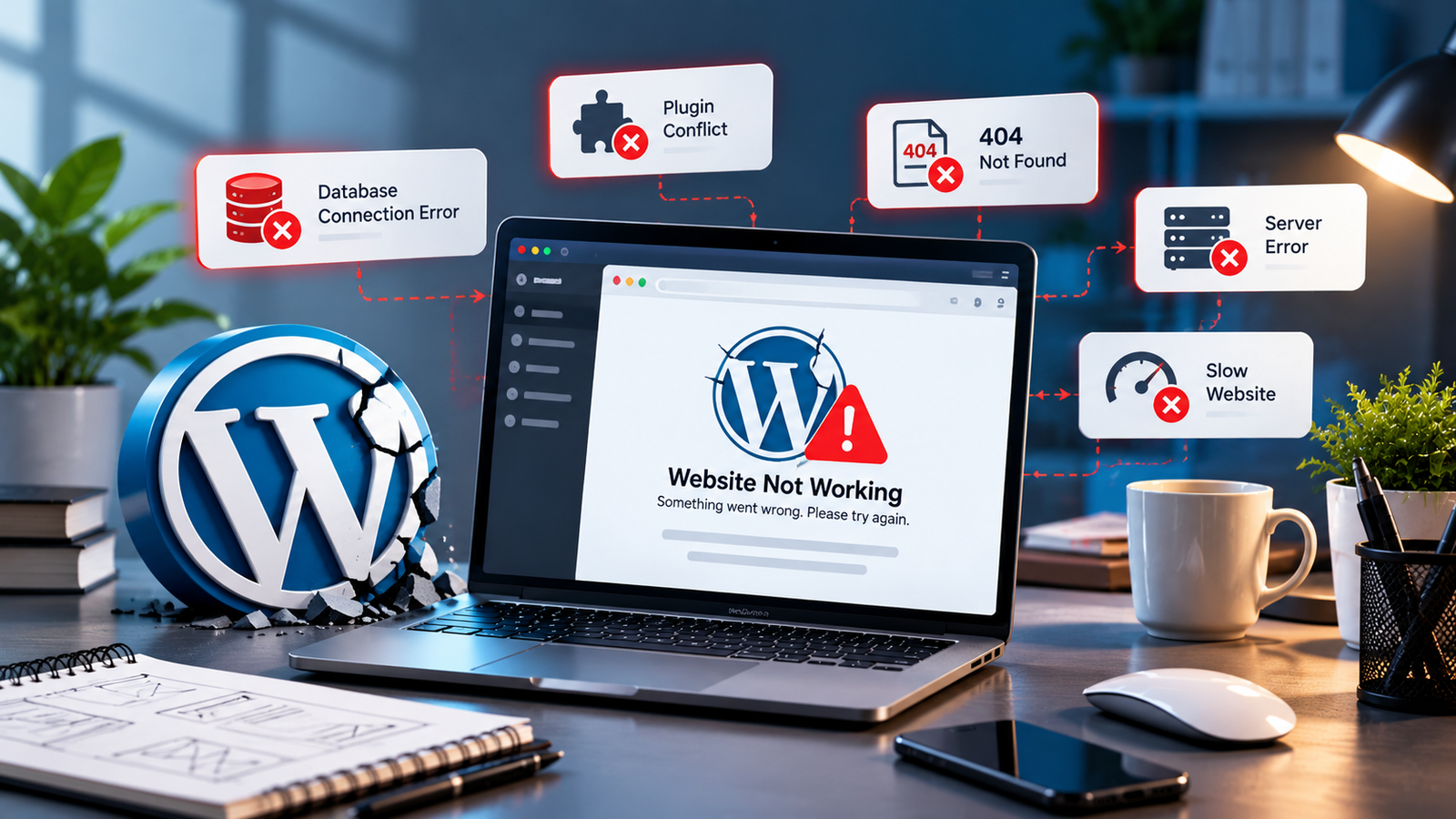
❓ Why Is My WordPress Website Not Working?
There can be different reasons why a WordPress website stops working. Sometimes the problem is caused by a plugin or theme. In other cases, it may be related to your hosting, updates, or website settings.
- A plugin is causing a problem
- Your theme has an issue
- WordPress needs an update
- Your hosting server is down
- Your website has a database problem
- Your SSL certificate has expired
- Your website files have been changed
- Your website has a security problem
🌐 1. Check Your Internet Connection
First, check if your internet is working properly. Try opening other websites to make sure your connection is fine.
You can also open your WordPress website on your phone or another computer. If it works on another device, the problem may be with your internet connection or browser.
🧹 2. Clear Your Browser Cache
Sometimes your browser saves an old version of your website. This can make the website look broken or show old information.
Try clearing your browser cache and open the website again. You can also open your website in an incognito or private window.
If the website works there, clearing the cache may solve the problem.
🔌 3. Check Your WordPress Plugins
Plugins add different features to WordPress, but sometimes a plugin can cause your website to stop working.
This can happen after installing a new plugin or updating an existing one.
If you can log in to WordPress, go to Plugins and deactivate the plugin you recently installed or updated. Then open your website again.
If the website starts working, that plugin may be causing the problem.
🎨 4. Check Your Theme
Your WordPress theme controls the design of your website. Sometimes a theme can cause problems after an update or after making changes to its files.
If the problem started after changing your theme, try switching to a default WordPress theme.
If your website starts working again, your theme may need to be fixed or updated.
🔄 5. Check for Recent Updates
Think about what you did before your website stopped working.
Did you recently:
- Update WordPress?
- Update a plugin?
- Update your theme?
- Install something new?
- Add custom code?
If the problem started just after one of these changes, that change may be the reason.
🖥️ 6. Check Your Hosting
Your website may not be working because of a problem with your hosting server.
Check if your hosting account is active and whether your hosting company has reported any server problems.
If other parts of your website are also not working, contact your hosting provider and ask them to check the server.
⚠️ 7. Look at the Error Message
If WordPress shows an error message, don't ignore it. The message can give you a clue about what is wrong.
You may see messages such as:
- 500 Internal Server Error
- 404 Not Found
- 403 Forbidden
- Error Establishing a Database Connection
- There has been a critical error on this website
The solution depends on the type of error, so knowing the exact message can make troubleshooting much easier.
🔒 8. Check Your SSL Certificate
If your website shows a security warning, your SSL certificate may have expired or may not be working correctly.
Check your hosting account to make sure your SSL certificate is active. Your website should normally open with HTTPS.
💾 9. Restore a Backup
If your website stopped working after making a big change, you may be able to restore a recent backup.
For example, if your website was working before a plugin update but stopped afterwards, a backup from before the update may help you get the website working again.
However, be careful when restoring a backup because you may lose recent website changes.
👨💻 10. Ask a WordPress Expert for Help
Some WordPress problems are easy to fix, while others need technical knowledge.
You may need professional help if:
- Your website is completely down
- You cannot log in to WordPress
- You see a critical error
- Your database is not working
- Your website has been hacked
- Your website keeps showing errors
- You don't know what caused the problem
Trying random changes can sometimes make the problem worse. A WordPress developer can check the website and find the actual cause.
🛡️ How to Avoid WordPress Problems
You can reduce the chances of your website breaking by taking a few simple steps.
- Keep WordPress updated
- Update your plugins and theme
- Remove plugins you don't use
- Take regular backups
- Use reliable hosting
- Keep your SSL certificate active
- Use website security
- Check your website regularly
Regular maintenance can help you find small problems before they become bigger ones.
🧾 Final Thoughts
When your WordPress website is not working, don't panic. Start with the simple things. Check your internet connection, clear your browser cache, check your plugins and theme, and look for any error message.
If you recently changed something on the website, check that change first. If you still cannot find the problem, it is better to ask a WordPress professional for help rather than making random changes.
With regular updates, backups, and maintenance, you can keep your WordPress website working properly and avoid many common problems.
🚀 Need Help With Your WordPress Website?
Get professional help to find and fix WordPress website problems.
📲 Contact Now